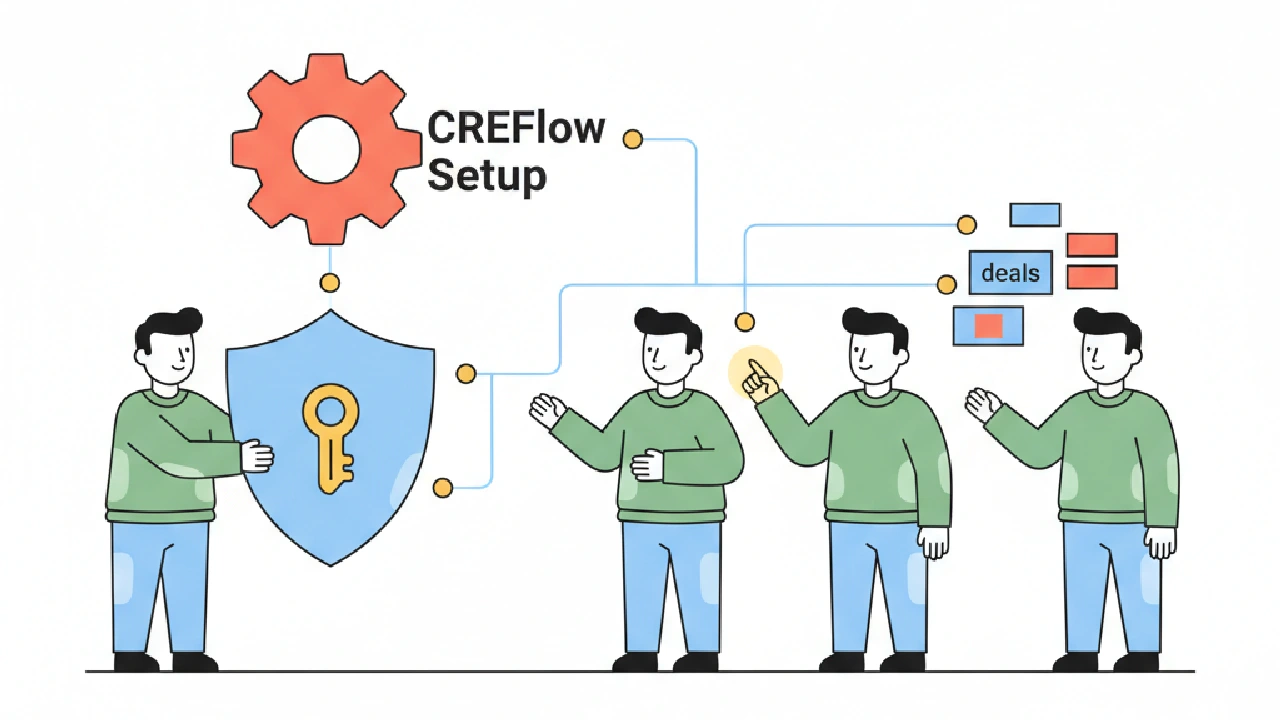
Listen, setting up your team in CREflow isn't just about inviting bodies. It's about making sure everyone has what they need to get deals done, without stepping on toes or creating a mess. We've seen enough teams fumble this to know it's worth doing right from the jump. Get your CREflow setup dialed in, and your operation runs smoother.
It comes down to clear roles, defined access, and knowing what each person can—and can't—do. You want collaboration, not chaos. This isn't academic; it's about protecting your pipeline and your sanity.
Define Roles, Not Just Titles with CREflow
The biggest mistake? Assuming a job title automatically translates to the right system role. Your team needs structure within CREflow. CREflow offers three core roles: Owner, Manager, and Member. Each has specific permissions, and understanding them is crucial for your CREflow implementation.
As the Owner, you've got the keys to the kingdom: billing, adding/removing teammates, and critically, setting up those Deal Stage Triggers. Managers are your operational backbone. They can archive deals, handle bulk tasks, and edit anyone's activities. This means they can step in and keep things moving if someone's out. Members are your workhorses—they create and edit resources, but they can't mess with the big-picture settings or assign work to others. They can only delete resources they themselves created. This is a deliberate design to prevent accidental data loss from less experienced users.
Let's say you have a junior analyst. They need to add properties, contacts, and track their outreach. Make them a Member in CREflow. They can do their core job without being able to accidentally delete a critical deal or change your global settings. Your acquisition lead, however, needs to assign tasks, clean up old deals, and manage the team's activity. They're a Manager. Simple, direct, and keeps things running.
Before You Assign Roles, Check This:
- Understand Owner, Manager, and Member permissions within CREflow.
- Map team responsibilities to these roles directly.
- Avoid giving "Manager" access just because someone asks for it without a clear need.
Visibility: Who Sees What, When in CREflow
Collaboration in commercial real estate means everyone needs to see enough to contribute, but not so much that it's overwhelming or exposes sensitive data unnecessarily. CREflow is built for team visibility. All resources—properties, deals, contacts, campaigns—created within a team are visible to everyone on that team. This isn't a hidden feature; it's core to the product.
But visibility goes deeper than just seeing a list. The Team Activity Feed on the CREflow Dashboard, for instance, shows recent activities from everyone. This is gold for keeping tabs on progress without micromanaging. If a deal hits a snag, you can check the activity timeline right on the deal page to see who did what and when. No more chasing emails or asking "what's the status on X?"
For example, imagine you have an active acquisition deal in CREflow. Your analyst logs a call with the broker, noting a new counter offer. That activity immediately appears in the Team Activity Feed and on the deal's timeline. Your acquisition lead, even if they were in a meeting, sees that update. They can then jump into the Offers tab on the deal to record the new offer. No lag, no missed communication.
Before You Manage Visibility, Check This:
- Ensure everyone understands that team-created resources are shared by default in CREflow.
- Encourage consistent logging of activities so the Team Activity Feed is always current.
- Use deal comments with @mentions for direct questions to teammates on specific deals.
Automate Actions with CREflow Deal Stage Triggers
This is where your CREflow setup for stages and ownership starts paying dividends beyond basic data storage. As the Owner, you can configure Deal Stage Triggers in CREflow Settings. This means when a deal moves from, say, "Prospecting" to "Under Contract," CREflow can automatically create action items.
Think about it: every time a deal moves, there's a set of tasks that needs to happen. Sending documents, scheduling an inspection, initiating a background check. Instead of relying on memory or a separate checklist (which often gets missed), you set up a trigger. These action items land directly in the Action Center for the assigned team member, with due dates and priority levels you define. It ensures nothing falls through the cracks.
We had a small team miss a crucial due diligence deadline once because a checklist was buried in an email thread. Cost us time and nearly cost us the deal. With CREflow, when a deal hits "Under Contract," we have triggers that automatically create tasks for "Send LOI to Legal," "Order Environmental Report," and "Schedule Property Inspection." Each task is assigned with a due date, and it pops up in the Action Center. It's a non-negotiable part of our process now.
Before You Set Up Triggers, Check This:
- Identify all repeatable tasks for each deal stage.
- Define clear owners and realistic due dates for each task.
- Test your triggers by moving a test deal through stages to confirm tasks are created correctly in CREflow.
Protecting Your Data: Deletion & Archiving in CREflow
Data integrity is paramount. In CREflow, the Owner and Managers have more power here, and for good reason. Managers can archive and restore deals, which is essential for pipeline hygiene. When a deal is closed (won or lost) or becomes inactive, you archive it to keep your active pipeline clean. It doesn't delete the data; it just moves it out of the immediate view.
Members, however, cannot archive or restore deals. They can view archived deals, but they can't bring them back into the active pipeline. This prevents a newer team member from accidentally restoring an old, dead deal and confusing the current pipeline.
When it comes to deletion, Managers can bulk delete leads or properties, but Members can only delete resources they created themselves. This is a critical distinction. A Member can't wipe out a critical list of contacts or a property an Owner or Manager added. This granular control is vital. It means you can trust your team to use the system without fear of accidental, widespread data loss.
Think about a new hire. They're going to make mistakes. Giving them Member access means they can learn the ropes, add their own contacts and properties, and even delete them if they mess up. But they can't accidentally nuke the master list. It's a safety net built into the CREflow framework for team collaboration.
Before You Handle Deletion & Archiving, Check This:
- Establish clear guidelines for when to archive a deal versus marking it closed.
- Ensure Managers understand the implications of bulk deletion within CREflow.
- Reinforce to Members that they can only delete their own created resources.
Key Takeaways
- Assign CREflow roles (Owner, Manager, Member) based on actual responsibility, not just job titles.
- Leverage shared visibility and the CREflow Team Activity Feed to foster transparent collaboration.
- Automate deal stage tasks using CREflow Action Trigger Settings to prevent missed follow-ups.
- Understand the hierarchy of deletion and archiving permissions to protect your data within CREflow.
- Regularly review your CREflow onboarding for small teams and team roles as your team evolves.
FAQ
What's the difference between an Owner and a Manager in CREflow?
The Owner has full administrative control, including billing, team member management (adding/removing), and configuring system-wide settings like CREflow Action Trigger Settings. A Manager has extensive operational permissions—they can archive deals, edit anyone's activities, and bulk delete resources—but they cannot manage team members, access billing, or change core team settings. Think of the Owner as the CEO, and the Manager as the COO.
Can a Member accidentally delete a critical deal?
No, a Member cannot accidentally delete a critical deal in CREflow. Members can only delete resources they created themselves. Deals that are created by an Owner or Manager, or that are integral to the team's pipeline, are protected from Member-level deletion. This prevents accidental data loss and maintains pipeline integrity.
How does CREflow prevent missed follow-ups with team permissions?
CREflow prevents missed follow-ups through a combination of features linked to team permissions. Owners can set up CREflow Deal Stage Triggers, which automatically create tasks in the Action Center for assigned team members when a deal moves stages. The Action Center provides a prioritized list of what's due, and Managers can edit or reassign these tasks. The shared CREflow Team Activity Feed also ensures visibility on who has done what, promoting accountability and ensuring follow-up tasks aren't missed.